Enjoy 5% OFF + FREE shipping on orders $49+! Use Code: 202512AK5

The Ultimate PSVR2 PC Adapter Settings Guide: Fix Blur & Boost FPS
So, you bought the PSVR2 PC Adapter. You plugged it into your RTX 4090, expecting mind-blowing 4K visuals. But when you loaded up Half-Life: Alyx, something felt… off.
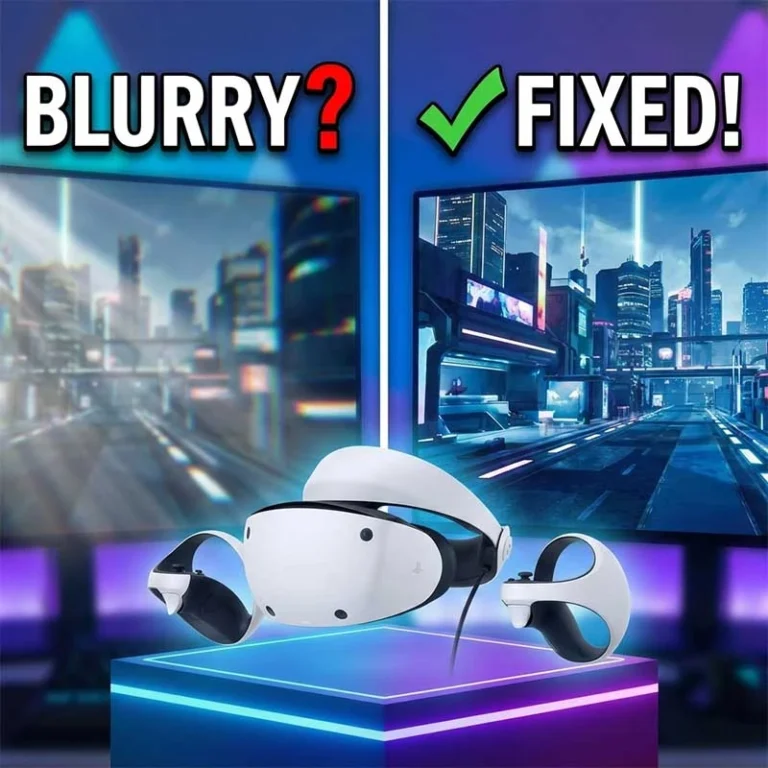
The image looks “soft.” The text in the menu is slightly fuzzy.
Don’t panic. Your headset isn’t broken. The problem is SteamVR’s default PSVR2 PC adapter settings. Out of the box, SteamVR often guesses the wrong resolution for PSVR2, leading to a blurry (subsampled) image or stuttering performance.
I’ve spent the last week digging through Reddit threads and testing configurations. Here is the definitive guide to getting the crystal-clear visuals you paid for.
1. The #1 Fix: Stop Using "Auto" Resolution
This is the most common reason for blurry visuals. By default, SteamVR sets your “Render Resolution” to Auto. This fluctuates based on your GPU load, often dropping the quality to keep framerates high.
How to Fix It:
Open the SteamVR Dashboard inside your headset.
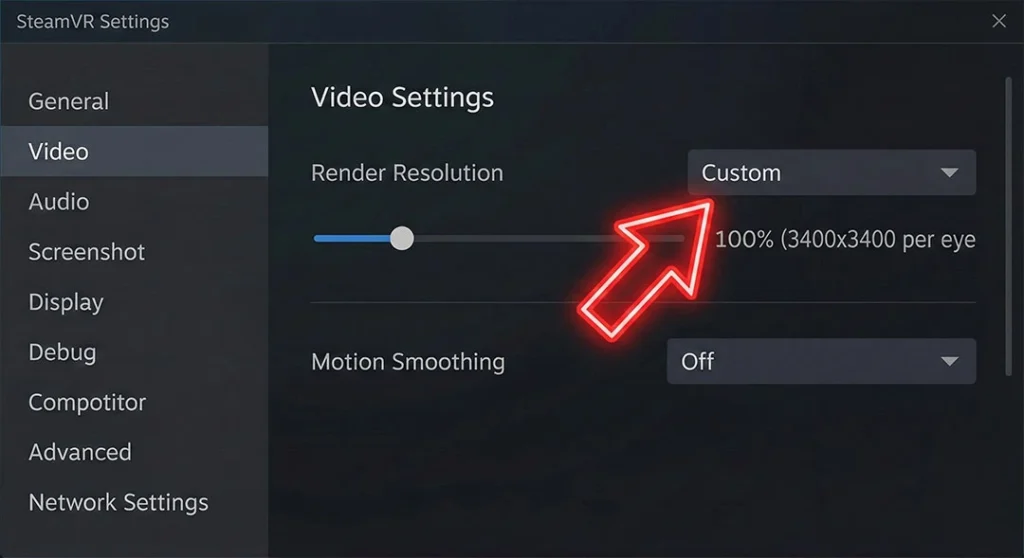
Go to Settings > Video.
Change “Render Resolution” from Auto to Custom.
What % Should You Choose?
The “Sweet Spot” (Mid-Range GPUs): Set it to 68%. According to extensive testing by the Steam Community, 68% is close to the native per-eye resolution (2000×2040) without putting unnecessary load on your card.
The “True 4K” (High-End GPUs): Set it to 100% (approx. 3400×3400). Wait, why 3400? The PSVR2 screens are only 2000×2040. SteamVR renders at a higher resolution to account for “Barrel Distortion” (the lens curvature). If you have an RTX 3080 or better, lock it at 100% for the sharpest possible image.
Pro Tip: Per-Application Settings
Don’t use one global setting. Set your global resolution to 100%, but for demanding games like Microsoft Flight Simulator, drop the “Per-Application Video Setting” to 80% to maintain smooth FPS.
2. Refresh Rate: 90Hz vs 120Hz?
You might be tempted to force 120Hz on everything, but on PC, stability is king.
Use 90Hz for: AAA games with heavy graphics (Cyberpunk 2077 VR mod, No Man’s Sky). Stable 90fps feels better than jittery 120fps.
Use 120Hz for: Fast-paced, optimized games (Beat Saber, Pistol Whip).
⚠️ Critical Setting: Disable Motion Smoothing In the SteamVR Video settings, ensure Motion Smoothing is set to Off. Reddit users unanimously agree that Motion Smoothing on PSVR2 creates weird visual artifacts and “wobbly” textures. Turn it off for a raw, clean image.
3. Enabling HDR (The OLED Advantage)
If your colors look washed out compared to playing on PS5, your HDR likely isn’t active.
Windows Settings: Go to Display Settings and ensure “Use HDR” is ON for the PSVR2 “monitor.”
SteamVR: Check that “HDR” is enabled in the specific PSVR2 device settings.
Brightness: If you see a grainy “Mura” effect (a common OLED trait), try lowering the brightness slider in SteamVR to roughly 70-80%. This hides the grain without crushing the blacks.
4. The Hardware Bottleneck: Why It Still Looks "Off"
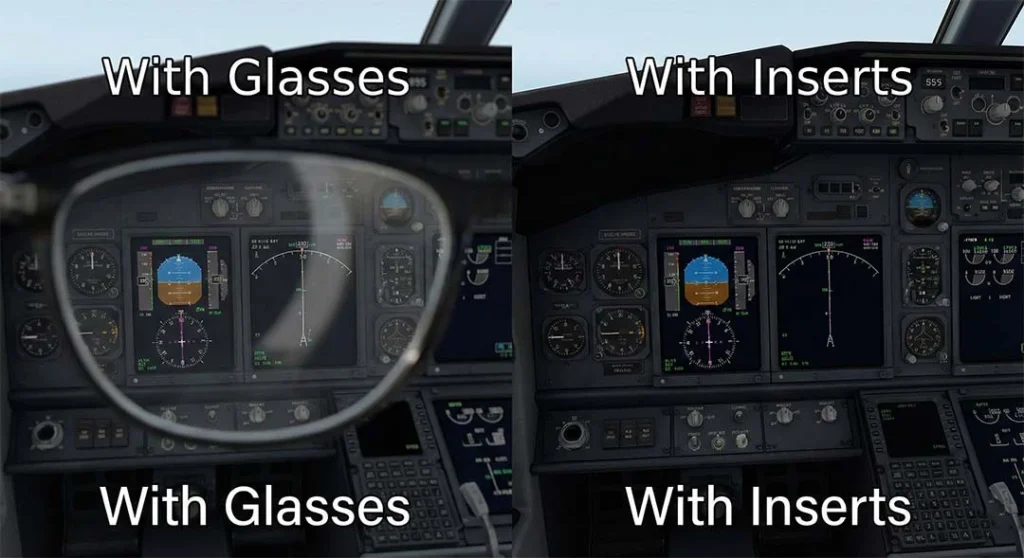
You optimized the resolution. You locked the framerate. But when you look at the dashboard in Assetto Corsa, the dials are still… glaring.
If you wear glasses, software settings cannot fix hardware physics. The PSVR2’s Fresnel lenses are highly sensitive to light leakage and reflection.
The Glare: Your glasses reflect the bright PC screen back onto the VR lens, creating “God Rays” that ruin high-contrast scenes.
The Distance: Glasses frame thickness pushes your eyes away from the Sweet Spot, causing edge blur that no resolution slider can fix.
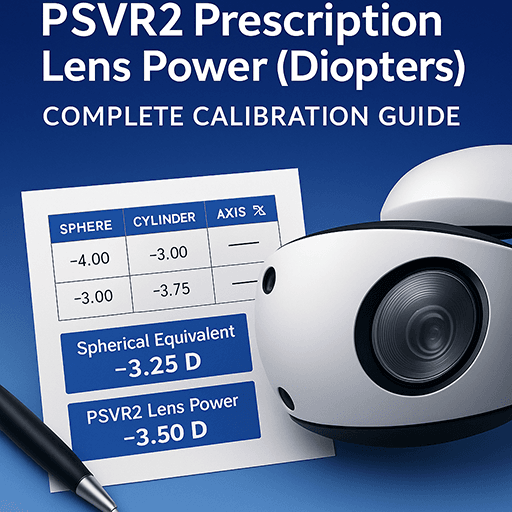
The Solution: To get the clarity of a 4K monitor, you need to remove the glass barrier. Installing ANNKUTVR Magnetic Prescription Lenses allows you to sit flush against the optics. This maximizes your Field of View (FOV) and eliminates the glare that ruins PCVR immersion.
For a deeper dive into why glasses hurt your experience, read our glasses safety guide.
5. Quick Troubleshooting: Bluetooth & Controllers
Is your hand tracking stuttering? The PSVR2 controllers connect via Bluetooth to your PC, not the adapter.
The Fix: Do not plug your Bluetooth dongle into the back of your PC case (which blocks the signal). Use a USB 2.0 extension cable to move the dongle away from the PC and place it directly in front of your play area.
(Missing a dongle or a specific DisplayPort cable? Sony doesn’t include them. Check our list of essential PCVR accessories to ensure you have the right gear).
Comfort on PC
PCVR sessions tend to be longer than PS5 sessions (especially for sim racers). If you feel your headset slipping or hurting your forehead after an hour, check our newly released guide on how to fix forehead pain and slipping.
Conclusion
The PSVR2 is a beast of a PCVR headset, but it needs some tuning.
Set SteamVR Resolution to Custom (68% – 100%).
Turn Motion Smoothing OFF.
Upgrade to prescription lenses to eliminate glare.
Now, boot up Half-Life: Alyx. It’s time to see what this headset can really do.
FAQ: PSVR2 PC Settings
Why is SteamVR showing 3400x3400 resolution?
his accounts for “barrel distortion” compensation. To get a 1:1 pixel match in the center of the lens, the GPU must render a larger image and warp it. 100% is the intended setting for high-end PCs.
Can I use the PSVR2 eye tracking on PC?
Currently, Sony does not support eye tracking or foveated rendering on PC officially, though some modders are working on solutions.
My controller is stuck in the floor, how to fix?
This is usually a Bluetooth interference issue. Ensure your Bluetooth antenna is visible to the controllers and away from USB 3.0 ports (which cause interference).
Does PSVR2 work with all SteamVR games?
Most of them, yes. However, controller mapping can sometimes be an issue for older titles.