Enjoy 5% OFF + FREE shipping on orders $49+! Use Code: 202512AK5

How to Master PSVR2 Cinematic Mode: 120Hz, HDR & Fixing Blurry Text
It’s Friday night. My legs are tired from standing up and dodging blocks in Beat Saber, and I just want to relax. This is exactly when I switch to PSVR2 Cinematic Mode.
Many users don’t realize that their headset is also a massive, personal 120Hz OLED monitor. Whether you want to play Black Myth: Wukong on a virtual 200-inch screen or watch Netflix in bed, this feature is a game-changer.
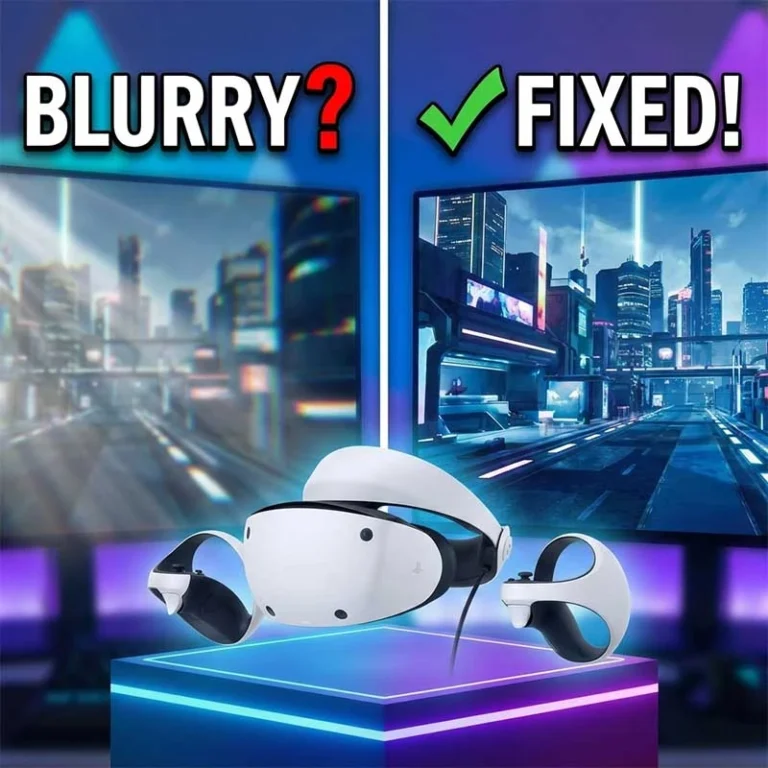
However, out of the box, the experience can be blurry and jittery. I spent the weekend testing every setting, and here is how to turn your headset into a true IMAX theater.
1. Unlocking the "Hidden" 120Hz & HDR
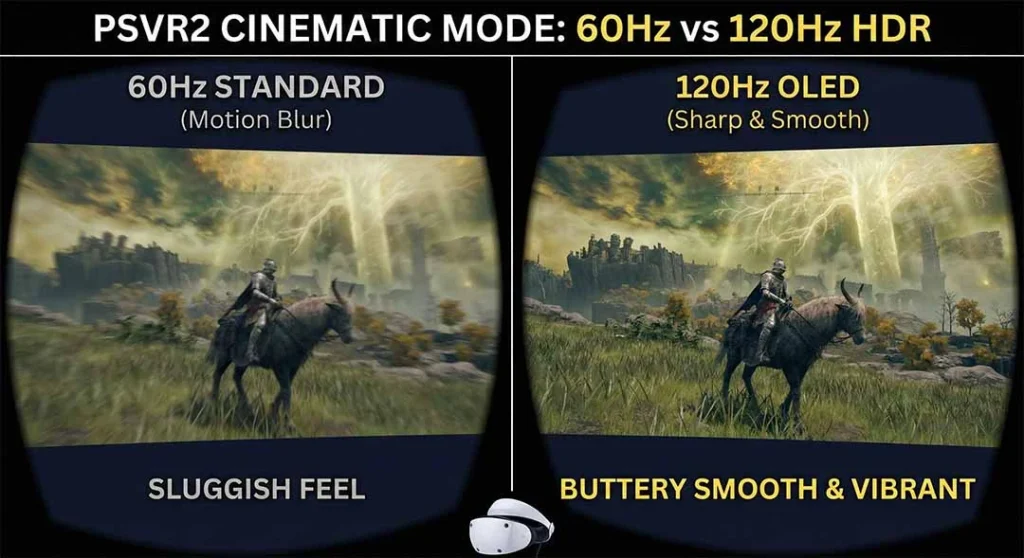
By default, the PSVR2 often limits non-VR content to 60Hz. If you play a fast-paced shooter like Call of Duty in Cinematic Mode without changing this, it will feel sluggish.
To get that buttery smooth motion and deep OLED blacks, you must force the output.
The Setup Steps:
Turn on your PS5 and headset.
Go to Settings > Accessories > PlayStation VR2 > Cinematic Mode.
Select Video Output.
Crucial Step: You must also verify your system settings. Go to Settings > Screen and Video > Video Output and ensure “120Hz Output” is set to Automatic.
Pro Tip: According to the official PlayStation Support page, Cinematic Mode supports 1920×1080 resolution with HDR. While it’s not native 4K, the OLED contrast makes it look better than most 4K LCD TVs.
2. Why Is My Screen Drifting to the Left?
There is nothing more annoying than watching a movie and realizing you are slowly turning your head 45 degrees just to keep the screen centered. This is called “Gyro Drift.”
The Instant Fix: You do not need to restart the console.
Look straight ahead (or wherever you want the center of the screen to be).
Press and hold the “Options” (Start) button on your controller for 2 seconds.
The screen will instantly snap back to your center of view.
I do this every time I change my sitting position on the couch. It’s a habit you need to build.
3. The "Blurry Text" Problem (And How to Fix It)
This is the most common complaint I hear: “The movie looks great, but the subtitles are unreadable.”
In VR games, you turn your head to look at things. In Cinematic Mode, you keep your head still and move your eyes to read subtitles at the bottom of the screen.
The Physics of the Problem: The PSVR2 uses Fresnel lenses. These lenses have a small “Sweet Spot” (the center area where the image is sharp). As you look toward the edges to read text, the clarity naturally drops due to lens distortion.
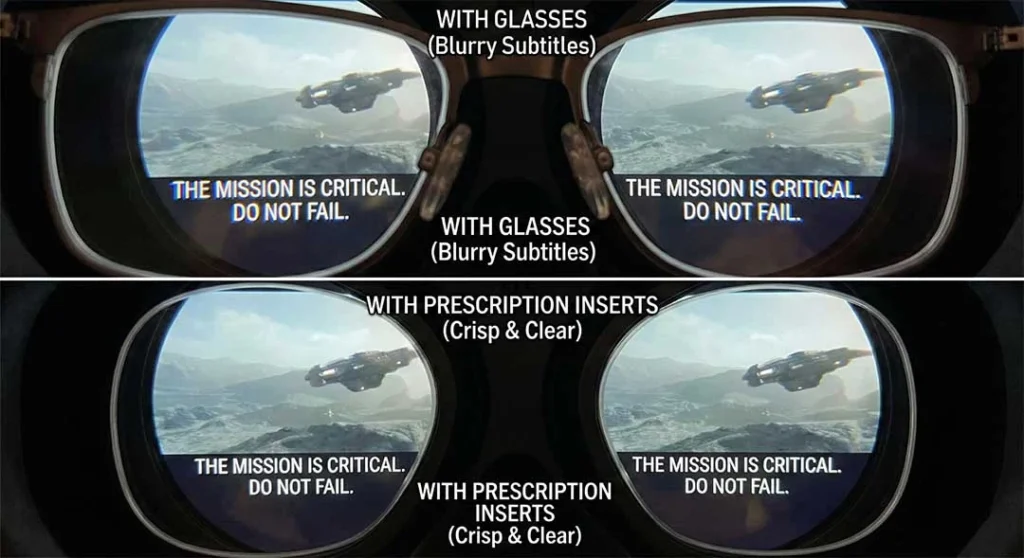
If you wear glasses, the gap between your eyes and the lenses is larger, which shrinks the sweet spot even further. This is why you see blurry edges.
The Solution: To read crisp subtitles from edge to edge, you need to get your eyes as close to the lenses as physically possible.
Step 1: Use the IPD dial to sharpen the center.
Step 2: Stop wearing glasses inside the headset. They push you away from the sweet spot.
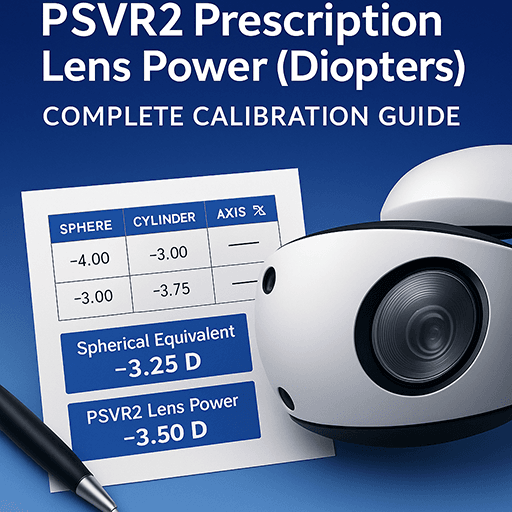
I switched to magnetic prescription lenses for PSVR2. By eliminating the glasses frame, I can bring the headset screen much closer to my eyes. The result? The subtitles at the bottom of the screen are finally readable without tilting my head down.
For a deeper dive on why lenses matter, check out our guide on finding the sweet spot.
4. Can I Use It as a PC Monitor?
Yes. If you have followed our PSVR2 PC Adapter guide, you know the headset works with SteamVR.
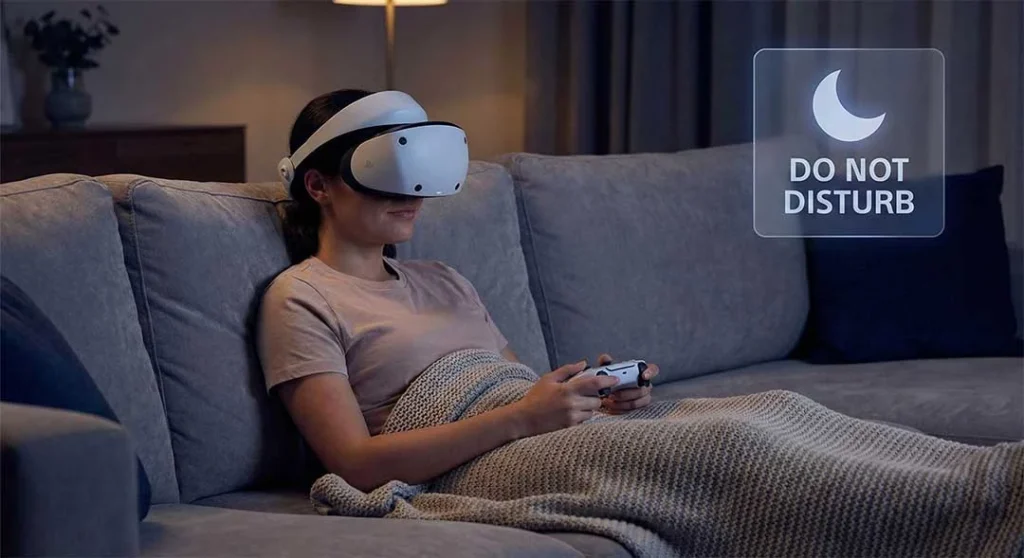
But for Cinematic Mode on PC? You can actually use the PSVR2 as a generic 1080p/120Hz monitor simply by plugging it into a VirtualLink GPU or specific adapters. This is perfect for privacy—I use it to work on sensitive documents or watch movies when I don’t want to disturb my partner.
Comfort Tip: Watching a 2-hour movie or working on documents puts the stock “Halo” strap to the test. If you find your forehead hurting halfway through the film, check our guide on how to fix PSVR2 comfort issues with mods.
Audio Sync Warning
When watching movies on PC via the headset, you might experience slight audio lag. I recommend using wired headphones plugged directly into the PC, rather than the headset’s audio jack, for the best synchronization.
FAQ: Cinematic Mode Troubleshooting
Why is my PSVR2 120Hz option greyed out?
This usually happens if the game you are launching doesn’t support 120Hz, or if “120Hz Output” is turned “Off” in the main PS5 Screen and Video settings.
Can I watch 4K movies on PSVR2?
While the PSVR2 panel is 4K, Cinematic Mode typically renders flat content at 1920×1080 (1080p) HDR. However, because of the OLED contrast, it often looks better than a 4K LCD TV.
Does Cinematic Mode drain the battery?
Cinematic Mode uses the DualSense controller, not the VR Sense controllers. So, your Sense controllers won’t drain, but the headset draws power from the console.
Conclusion
Don’t let your PSVR2 gather dust between major VR game releases. With 120Hz enabled and the right setup, it is likely the best HDR display in your house.
If you are tired of squinting at blurry subtitles or dealing with foggy lenses during a long movie, it might be time to upgrade your comfort. Check out our ANNKUTVR custom lens inserts to lock in that IMAX clarity for good.