Enjoy 5% OFF + FREE shipping on orders $49+! Use Code: 202512AK5

How to Fix PSVR2 Controller Tracking Issues & Stick Drift (2026 Ultimate Guide)
There is nothing scarier in Resident Evil Village than aiming your gun at a zombie, only to have your virtual hand fly off into the ceiling. If you are suffering from PSVR2 controller tracking issues, you are not alone.
I spent the last week troubleshooting my own “floating hands” and stick drift on both PS5 and PC. It turns out, the headset isn’t broken—it’s usually an environmental or connection glitch.
Here are the 5 fixes that actually stabilized my tracking (and saved my sanity).
1. The "Vampire Rule": Fix Your Lighting
The #1 cause of tracking loss is your room environment. The PSVR2 uses inside-out tracking cameras. If they get blinded, your controllers disappear.
- Cover the Mirrors: I found that my large hallway mirror was confusing the headset. The cameras see the reflection of the controller’s IR lights and think there are four controllers. Cover any reflective surfaces.
- Avoid Direct Sunlight: Just like a vampire, the PSVR2 hates the sun. Intense sunlight washes out the IR tracking LEDs.
- Clean the Cameras: Fingerprints on the exterior headset cameras cause blur. Use a microfiber cloth to wipe the four external cameras gently to ensure they can “see” your controllers clearly.
2. The "Pinhole" Hard Reset (The Magic Button)
If your lighting is perfect but your right hand is still stuck in the floor, the controller’s internal software might be crashed.
How to do it:
Turn off the PS5.
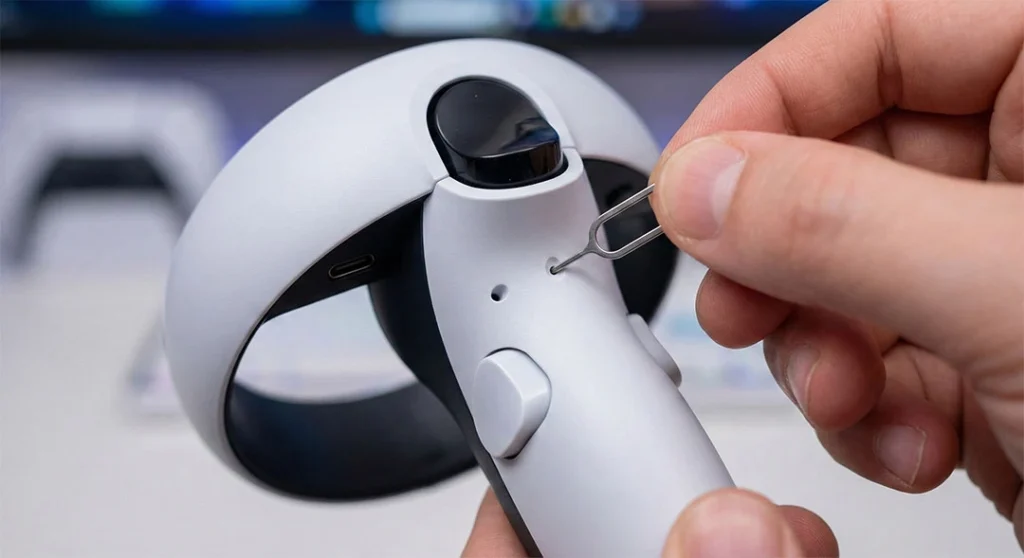
Find the tiny pinhole next to the R2/L2 trigger on the back of the controller.
Use a SIM card tool or paperclip to press the button inside for 5 seconds.
Re-pair the controller via USB cable.
3. PC VR Users: The Bluetooth Nightmare
If you are using the PC adapter, your issue is likely Bluetooth interference. I learned this the hard way: built-in motherboard Bluetooth is terrible for VR.
As we discussed in our PC adapter settings guide, the PC experience is amazing, but only if the Bluetooth connection is stable.
The Solution:
Buy a dedicated USB Bluetooth 5.0+ adapter. (Not sure which one works best? Check the recommended adapters in our 12 must-have PSVR2 accessories list)
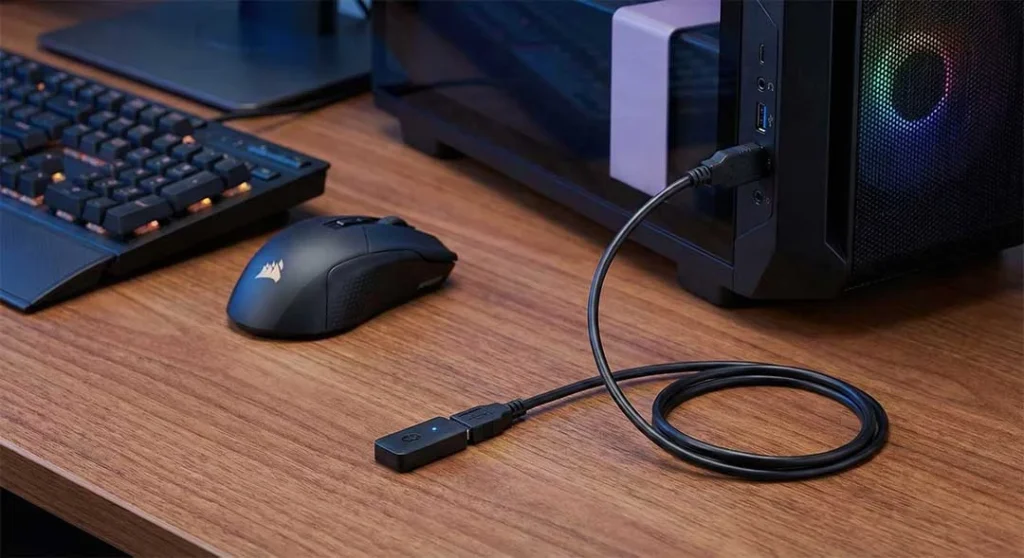
Crucial Step: Do NOT plug it directly into the PC case. Use a USB 2.0 extension cable to move the dongle away from the metal case and specifically away from USB 3.0 ports. USB 3.0 ports generate noise that kills Bluetooth signals.
4. Fixing Stick Drift (Without Opening It)
Is your character walking to the left on their own? That is “Stick Drift.” Before you buy a new controller, try cleaning the potentiometer.
Warning: Do not use WD-40. It leaves a residue that ruins electronics.
The Fix: Use a specific Electronic Contact Cleaner (like BW-100). Spray a tiny burst into the base of the thumbstick and wiggle it around. This clears out the dust causing the drift. For more severe hardware failures, you can check PlayStation’s official repair tool to see if you are under warranty.
5. Tracking is Fixed... But Is It Clear?
Now that your hands are tracking perfectly, you can finally hit those precise blocks in Beat Saber. But precision requires more than just good controllers—it requires clear vision.
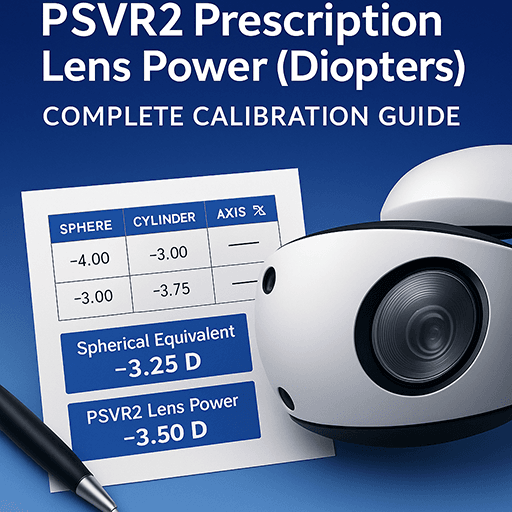
If you are still seeing a blurry image or dealing with fog, your high scores will suffer. I solved this by installing custom inserts.
Don’t let blurry vision hold back your newly fixed tracking precision. Check out our ANNKUTVR PSVR2 Prescription Lenses to lock in that 4K clarity for good.
FAQ: PSVR2 Tracking & Calibration
How do I update the PSVR2 controller firmware?
Firmware updates often fix hidden tracking bugs. To update, connect your PSVR2 Sense controllers to the PS5 using the official USB cable. Go to Settings > Accessories > Controller (General). If an update is available, you will see a prompt to “Update Wireless Controller Device Software.”
Why can't my PSVR2 track my surroundings?
This is almost always a lighting or texture issue. If your room is completely white (blank walls) or too dark, the cameras have no reference points. Try adding a patterned rug, putting posters on the wall, or using an IR floodlight for consistent tracking in the dark.
How do I recalibrate the eye tracking?
If your tracking is fine but the image looks blurry or “off-center,” your eye tracking might be drifted. Double-tap the PlayStation button, go to Quick Settings > Adjust Visibility, and follow the on-screen dots to recalibrate foveated rendering.
Why does my VR headset keep losing tracking?
Besides lighting, check your “Play Area.” If you move furniture or if the room lighting changes drastically (day vs. night), the PSVR2 gets confused. Go to Settings > Accessories > PlayStation VR2 > Set Play Area to redraw your boundaries.