Enjoy 5% OFF + FREE shipping on orders $49+! Use Code: 202512AK5

Why Is My PSVR2 Blurry? Finding the "Sweet Spot" & Fixing Visuals (2026 Guide)
You just put on your PlayStation VR2. You are ready to dive into Horizon Call of the Mountain or fire up your PC via the adapter. But instead of sharp 4K HDR visuals, everything looks… soft. Text is smeared. The edges are glowing.
Did you get a defective unit? Probably not.
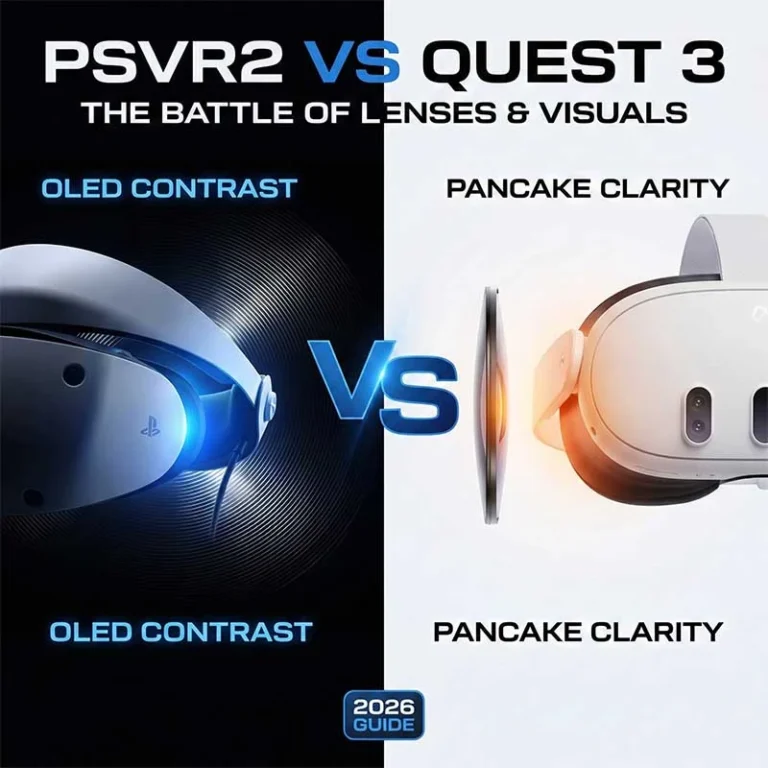
Unlike the Meta Quest 3, the PSVR2 uses Fresnel lenses.(Curious about the technical difference between these lenses? See our deep dive: PSVR2 vs Quest 3: Lenses & Visuals Comparison.) While these deliver incredible brightness and contrast (OLED), they have a notoriously tiny “Sweet Spot.” If you are off by even a millimeter, the image degrades into a blurry mess.
In this guide, we will walk you through exactly how to lock in that sweet spot, fix the dreaded “God Rays,” and get the crystal-clear image you paid for.
The "Sweet Spot" Struggle: Why PSVR2 is Tricky
First, stop blaming your eyes. The PSVR2 requires a specific fit. The “Sweet Spot” is the exact center of the lens where the image is focused. On PSVR2, this area is much smaller than on pancake-lens headsets. If the headset slips down your nose or isn’t centered perfectly, you will experience blur and chromatic aberration (color fringing).
How to Wear the "Halo" Strap Correctly
The #1 reason for blurriness is wearing the headband too high on your head.(You can check PlayStation’s official diagram for reference, but here is the practical breakdown:)
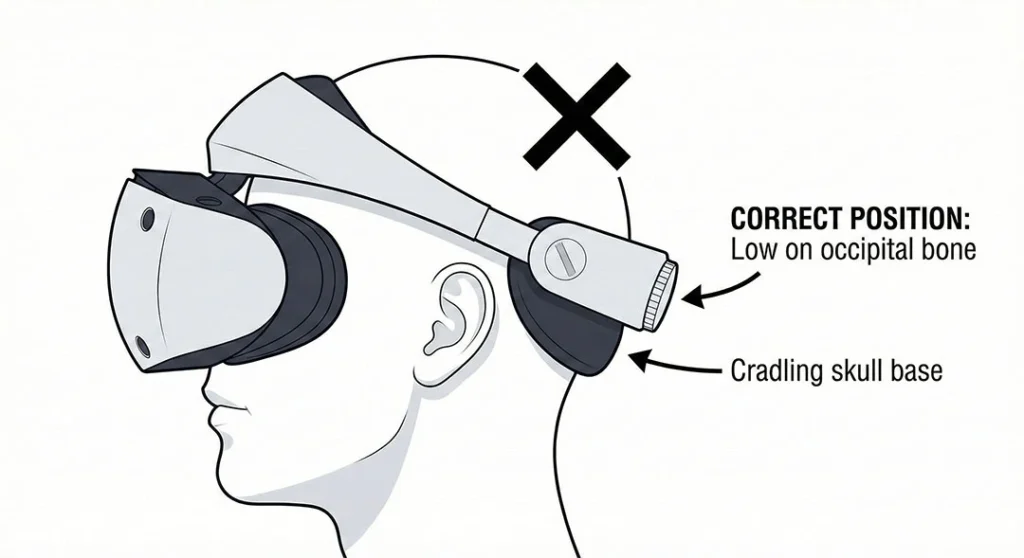
Loosen the dial on the back completely.
Pull the scope (the front part) all the way out.
Place the back pad low on the base of your skull (the occipital bone).
Lower the front scope until it rests comfortably.
Tighten the dial. Pro Tip: If the headset feels like it is sliding down your nose, the back strap is too high. (Constant slipping makes the image blurry. If you can’t keep the sweet spot locked, check our guide on how to stop PSVR2 slipping with comfort mods).
IPD Settings: The Source of Blur (and Headaches)
If the physical fit is snug but the image is still doubled or fuzzy, your IPD (Interpupillary Distance) is likely wrong. The PSVR2 has a physical dial on the top left. You must adjust this until your eyes are perfectly aligned with the lens centers.
Double Tap the PS Button: Go to quick settings and select “Adjust Visibility.”
Align the Eyes: Turn the dial until your eyes are blue and centered in the frame.
⚠️ Warning: Incorrect IPD settings don’t just cause blur; they strain your eye muscles. If you find yourself getting dizzy, read our guide on Why Does PSVR2 Give Me Headaches? (The Eye Strain Fix) to learn more about the health side of IPD.
God Rays and Glare: The "Fresnel" Effect
Do you see streaks of light or a “halo” around white text on a black background? That is called “God Rays.” It is an inherent trait of Fresnel lenses. However, excessive glare is often caused by two things: Smudges and Glasses.
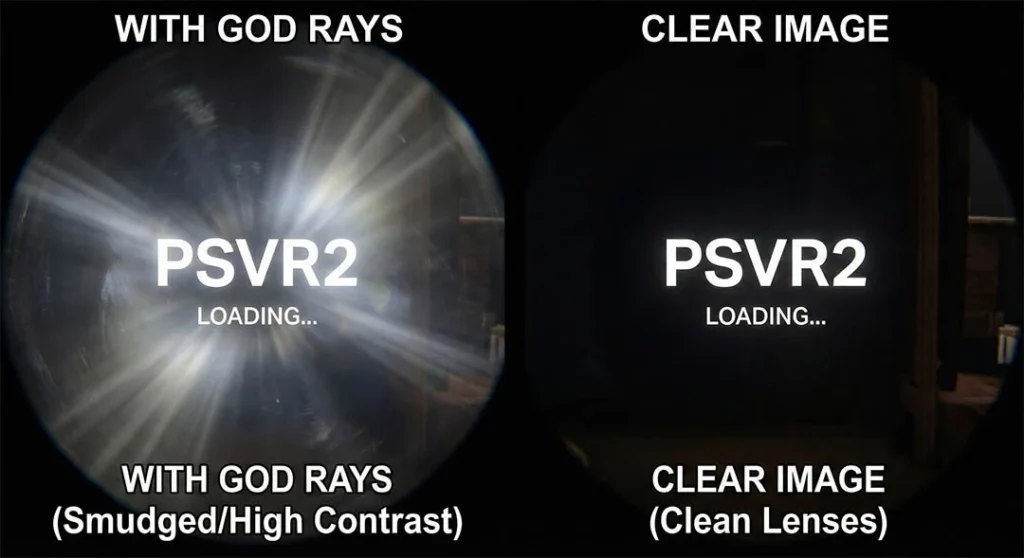
Is Your Lens Clean?
Oil from your eyelashes or sweat can create a “bloom” effect that looks like permanent blur. Because of the delicate anti-glare coating on PSVR2, you cannot use just any cloth. 👉 Check our step-by-step tutorial on How to Clean PSVR2 Lenses Safely to ensure you aren’t rubbing the oil around or scratching the glass.
The Glasses Problem
If you wear glasses, the gap between your eye and the lens increases. This pushes you further away from the sweet spot, increasing edge blur. Worse, light leaks in from the sides, causing reflections on your glasses lenses. 👉 Is it safe? Read our critical safety warning: Can You Wear Glasses with PSVR2? (The Definitive Safety Guide).
Thinking of switching to contacts? Be careful. Many gamers switch to contact lenses to avoid glasses, only to find their vision gets “milky” after 20 minutes. This is because dry eyes affecting visual clarity is a huge issue in VR due to reduced blink rates.
PC Adapter Users: Check Your SteamVR Resolution
If you are using the PSVR2 on a PC via the official adapter, the blur might be entirely software-related rather than a hardware issue.
By default, SteamVR might auto-scale your resolution down.
Open SteamVR Settings.
Go to Video.
Set “Render Resolution” to Custom.
Slide it to 100% or higher (if your GPU can handle it). If this is set to “Auto” and drops below 100%, the image will look soft regardless of how perfect your fit is.
The Ultimate Fix: Prescription Lens Inserts
If you have adjusted the fit, dialed in the IPD, cleaned the lenses, and still see blur, the issue is likely the barrier between you and the display: Your Glasses.
Glasses prevent you from getting close enough to the lens to maximize the field of view. They also introduce extra layers of glass that cause refraction errors.
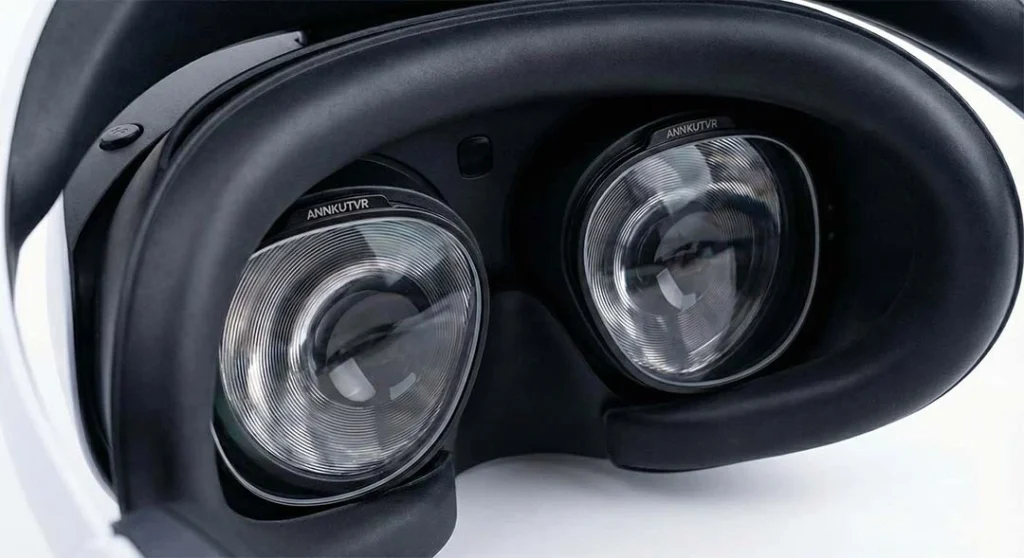
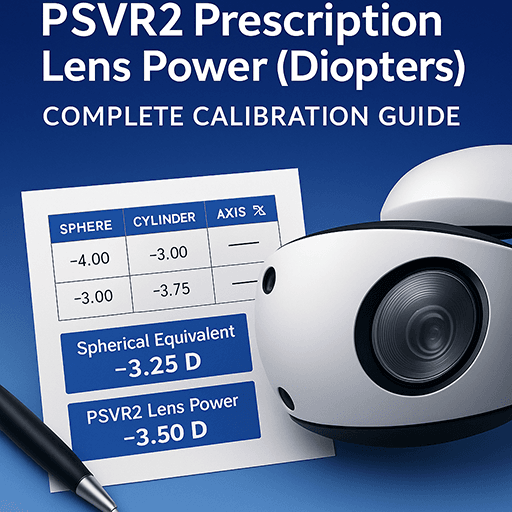
By installing custom prescription inserts, you eliminate the glasses gap. This brings your eyes closer to the VR optics, effectively widening the usable sweet spot and eliminating fog.
As demonstrated by thousands of daily users, this is the single biggest upgrade you can make for visual clarity.
For a broader look at frame fit, lens clearance and scratch risk, see our glasses for VR guide.
Conclusion
Don’t let a blurry image ruin your immersion. The PSVR2 is capable of stunning visuals, but it demands a little patience to set up correctly.
Wear the halo strap low.
Dial in your IPD perfectly.
Check your SteamVR resolution (for PC users).
Ditch the glasses for direct optical clarity.
Ready to see the difference? Shop our ANNKUTVR PSVR2 Prescription Lenses today and lock in that 4K clarity for good.
FAQ
How can I make my PSVR2 image clearer?
Ensure the “Halo” strap is resting low on the base of your skull, not high on the back of your head. Use the physical dial to adjust your IPD until the eyes on the setup screen are centered and blue.
Why does PSVR2 look grainy (Mura effect)?
The graininess is caused by the OLED display’s Mura effect, which is common in high-contrast HDR headsets. While you can’t remove it, finding the perfect “sweet spot” makes it less noticeable during gameplay.
Why is the VR image blurry even though the screen is right in front of me?
VR lenses project the image to a focal distance of about 2 meters. If you are nearsighted and don’t wear your glasses or ANNKUTVR prescription inserts, the image will remain blurry just like in real life.
How do I prevent my PSVR2 lenses from fogging up?
Fogging occurs due to the temperature difference between your face and the cold lenses. Using ANNKUTVR inserts can act as a thermal barrier, significantly reducing condensation during intense sessions.
What should I use to clean my PSVR2 lenses?
Always use a clean, dry microfiber cloth. Never use alcohol, wet wipes, or glasses cleaner, as these can permanently strip the delicate anti-reflective coating off the Fresnel lenses.